
iOS Simulator
Introduction
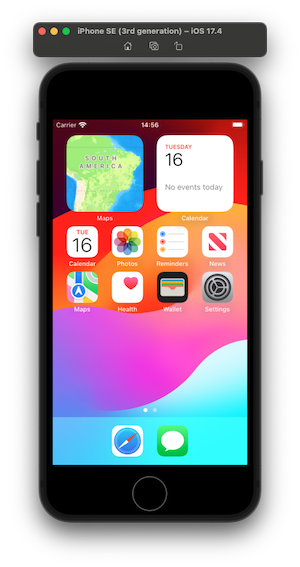
When a physical iOS device is not available, you can use an iOS simulator to run your automated tests. This guide explains how to set up and use an iOS simulator with Appium.
It is not always possible to have an IPA file with the properly configured profile and credentials to use on a real device. In such cases, if an .app file is available, it can be more easily installed on a simulator.
Prerequisites
- macOS and Xcode installed.
Creating an iOS Simulator
- Open Xcode.
- Go to Window > Devices and Simulators.
- Click on the Simulators tab.
- Click the + button in the bottom-left corner.
- Choose a device type (e.g., iPhone 15), an OS version, and give it a name.
- Click Create.
Running the Simulator
- Open Xcode.
- Go to the menu Xcode > Open Developer Tools > Simulator.
- The Simulator app will launch. If the correct device doesn't appear, you can select it from the File > Open Simulator menu.
Adjusting Capabilities for Simulator
To run tests on the simulator, you need to modify the Appium capabilities. The main change is to specify the simulator's device ID (udid).
Finding the Simulator's udid
Open your terminal and run the following command:
shellxcrun simctl list devicesThe output will list the available simulators, grouped by iOS version. Find the simulator you want to use and copy its UDID.
text== Devices == -- iOS 17.0 -- iPhone 15 (12345678-ABCD-1234-ABCD-1234567890AB) (Booted)
Python Example Adjustments
For the Python examples, you would adjust the capabilities dictionary as follows:
capabilities = dict(
    platformName='iOS',
    automationName='XCUITest',
    udid='12345678-ABCD-1234-ABCD-1234567890AB',  # <-- Change this to your simulator's udid
    autoGrantPermissions=True,
    app='path/to/your/app.app' # Or bundleId
).NET Example Adjustments
For the .NET example, you would adjust the AppiumOptions as follows:
var options = new AppiumOptions
{
    PlatformName = "iOS",
    AutomationName = "XCUITest",
    App = @"/path/to/your/app.app" // Or bundleId
};

options.AddAdditionalAppiumOption("udid", "12345678-ABCD-1234-ABCD-1234567890AB"); // <-- Change this to your simulator's udid
options.AddAdditionalAppiumOption("autoGrantPermissions", true);Recommendations
- Performance: Simulators can be resource-intensive. Ensure your Mac has enough RAM and CPU power to run the simulator smoothly.
- Clean State: For consistent test results, it's a good practice to reset the simulator's content and settings before a test run. You can do this from the Device menu in the simulator, by selecting Erase All Content and Settings....