
macOS and Xcode
To test applications for iOS, it is essential to use an Apple computer running macOS.
It is recommended to use an Apple computer that is new enough to smoothly run all the necessary automation tools, as well as being able to update to the latest versions of the tools.
The following information window can be displayed by clicking on the Apple icon and selecting the 'About This Mac' option.
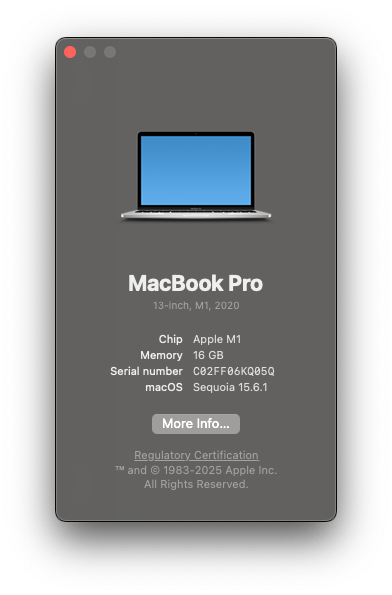
In this section we will check the presence of the following items:
- macOS system
- XCode
- XCode Command Line Tools
macOS
It is crucial to keep your macOS updated to the latest version to ensure compatibility and access to the latest features.
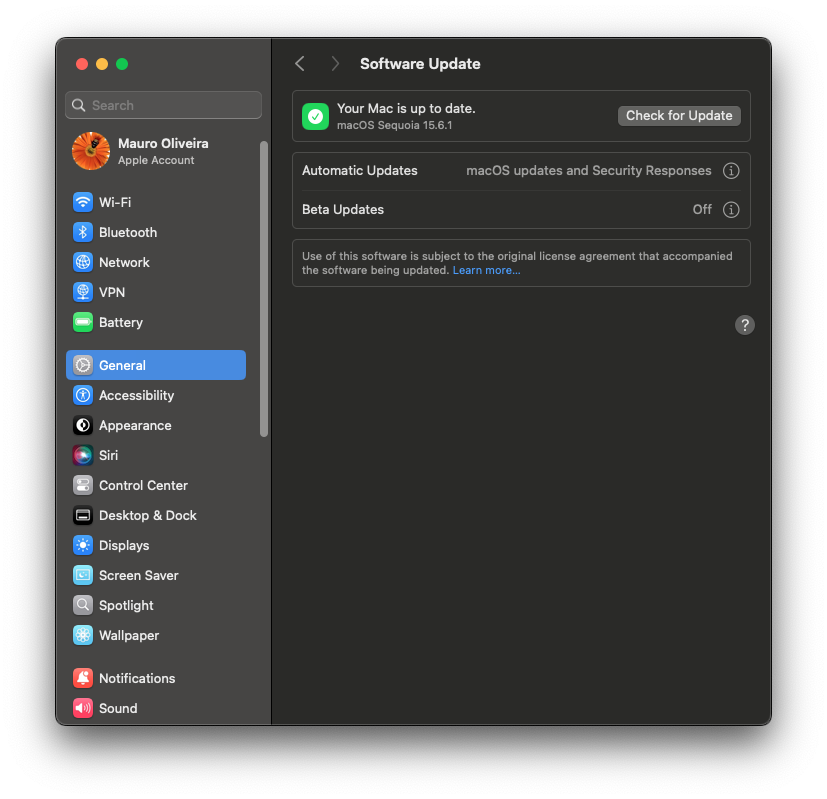
You can check for software updates by navigating to the Apple menu > System Settings > General > Software Update.
It is important that your system is up to date, as indicated by the message "Your Mac is up to date." in the following screen:
Xcode
You can verify the installation of Xcode and its Command Line Tools using the terminal. To check if Xcode is installed, run this command:
xcodebuild -versionYou can install and update Xcode through the App Store, or download it from Apple Developer site.
Please assure that the Xcode is updated to the latest version.
You can consult the latest versions of Xcode and the Command Line Tools on the official Apple Developer website or on sites like Xcode Releases.
Xcode Command Line Tools
To check if the Command Line Tools are installed, you can try to print the path:
xcode-select -pIf it returns a path like /Library/Developer/CommandLineTools, they are installed. If not, you can install them with:
xcode-select --install