
.NET Example 1
Goal to Achieve
Do login with invalid credentials on AgileTV app on an iPhone using .NET and take a screenshot.
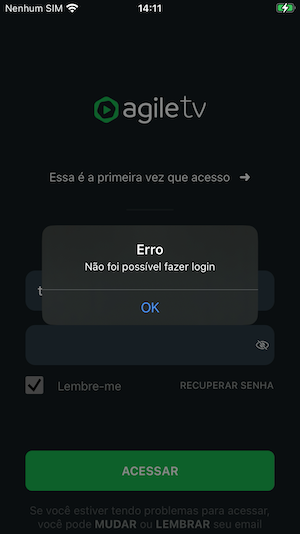
Steps to reproduce:
- Ensure AgileTV is installed from the App Store on the iPhone.
- Open AgileTV app.
- Wait until username input appears on screen.
- Fill username, password and press ENTER.
- Take a screenshot.
Prerequisites
- Common environment steps to be completed.
- iOS environment steps to be completed.
- .NET SDK installed on the computer. For more details, check the .NET Tips.
- A connected iPhone, as described here.
- Appium server running, as described here.
- AgileTV installed from the App Store (see below).
Install AgileTV from the App Store
On the iPhone, open the App Store.
Search for “Agile TV”.
Confirm the app publisher matches Agile TV by Agile Content/Agile TV brand and the icon is the expected Agile TV logo.
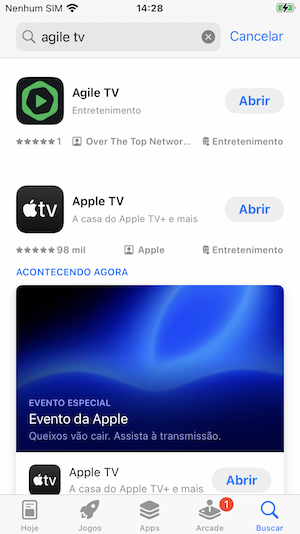
Tap Get/Download and complete the install so the app is present on the device home screen.
Project Setup
- Create a new .NET MSTest project. Follow the instructions here.
- Add the
Appium.WebDrivernuget package as described here. - Your
.csprojfile should look like this:xml<Project Sdk="Microsoft.NET.Sdk"> <PropertyGroup> <TargetFramework>net8.0</TargetFramework> <LangVersion>latest</LangVersion> <ImplicitUsings>enable</ImplicitUsings> <Nullable>enable</Nullable> </PropertyGroup> <ItemGroup> <PackageReference Include="Appium.WebDriver" Version="8.0.0" /> <PackageReference Include="Microsoft.NET.Test.Sdk" Version="17.12.0" /> <PackageReference Include="MSTest" Version="3.6.4" /> </ItemGroup> <ItemGroup> <Using Include="Microsoft.VisualStudio.TestTools.UnitTesting" /> </ItemGroup> </Project> - Replace the content of
UnitTest1.cswith the following code, and rename the file toAgileTvLoginIosTests.cs:csharpusing OpenQA.Selenium; using OpenQA.Selenium.Appium; using OpenQA.Selenium.Appium.iOS; namespace AgileTvAppium.Tests; [TestClass] public sealed class AgileTvLoginIosTests { private IOSDriver? driver; [TestInitialize] public void SetUp() { var options = new AppiumOptions { PlatformName = "iOS", AutomationName = "XCUITest", }; options.AddAdditionalAppiumOption("udid", "00000000-0000000000000000"); // <-- Change to your device's UDID options.AddAdditionalAppiumOption("usePrebuiltWDA", true); options.AddAdditionalAppiumOption("bundleId", "es.ottnib.tve.agiletv"); var serverUri = new Uri("http://localhost:4723/"); driver = new IOSDriver(serverUri, options, TimeSpan.FromMinutes(1)); driver.Manage().Timeouts().ImplicitWait = TimeSpan.FromSeconds(30); } [TestCleanup] public void TearDown() { driver?.Quit(); } [TestMethod] public void Login_TakesScreenshot() { if (driver is null) throw new InvalidOperationException("Driver not initialized"); driver.FindElement(MobileBy.AccessibilityId("login_user_input")).SendKeys("testuser"); driver.FindElement(MobileBy.AccessibilityId("login_password_input")).SendKeys("p4ssw0rd\n"); Thread.Sleep(8000); var screenshot = ((ITakesScreenshot)driver).GetScreenshot(); screenshot.SaveAsFile("screenshot.png"); } }
Capabilities
Before running, you need to adjust the AppiumOptions:
- udid: Replace
'00000000-0000000000000000'with the UDID of your connected device. You can find this ID as explained here. - bundleId: Already set to
es.ottnib.tve.agiletvso Appium launches the App Store-installed app.
Find the bundleId
If you need to discover the correct bundleId for an installed app, list all apps on the connected iPhone using your terminal:
shell
ideviceinstaller -lThis prints the bundle identifiers of installed apps. See iOS Devices for usage and installation (via Homebrew on macOS).
Running the test
To run the test, execute the following command in your terminal:
shell
dotnet test