
Android Devices
Introduction
This module provides instructions on how to connect different Android devices to the developer machine, enabling application debugging and automated testing in both Windows and MacOS environments.
Prerequisites
Example 1: DWT765MM
In this example we will learn how to connect an AgileTV Technicolor DWT765MM set-top box to the developer computer.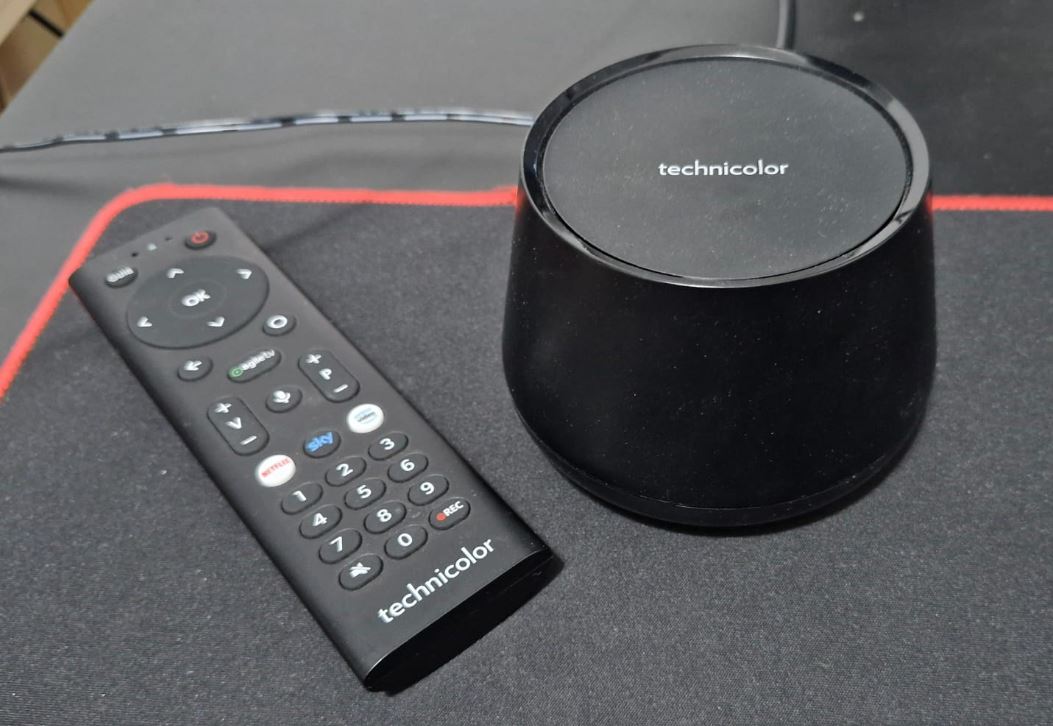
| Specification | Detail |
|---|---|
| Model | Technicolor DWT765MM |
| Android | Android TV 9 |
| RAM | 2 GB |
Enabling USB debug
- At Home screen, click on "AJUSTES" button.
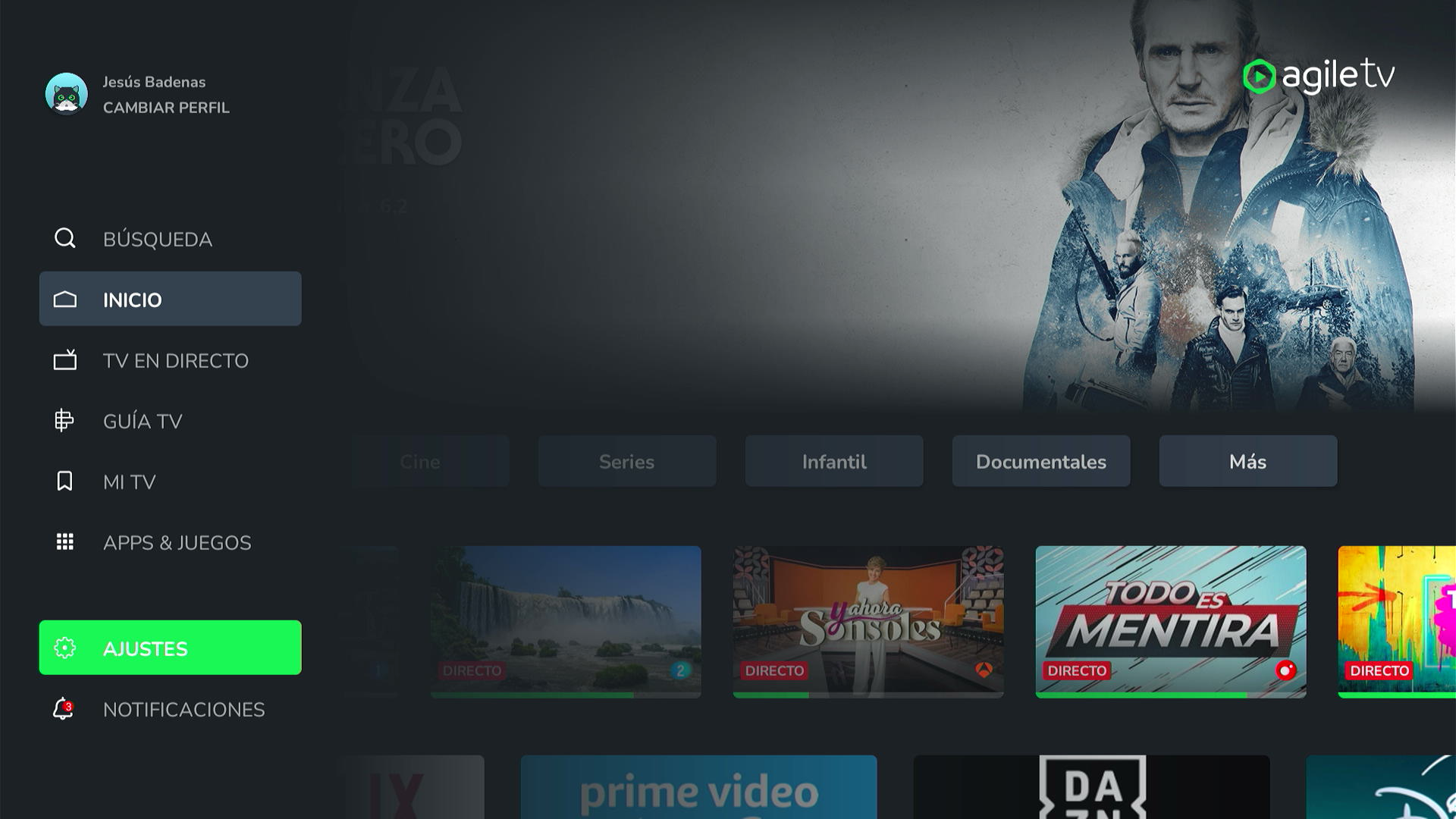
- Click "Ajustes de sistema".
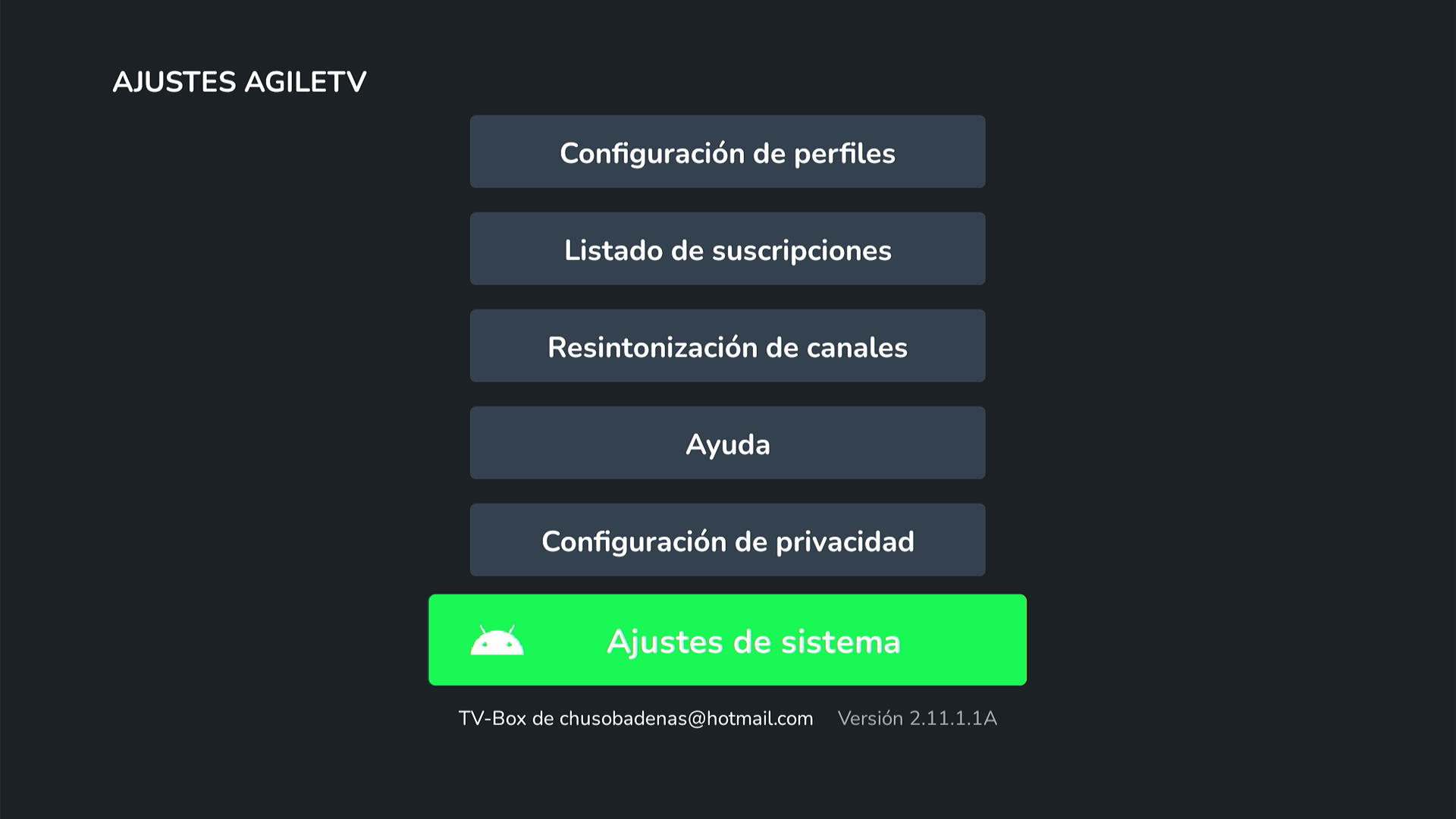
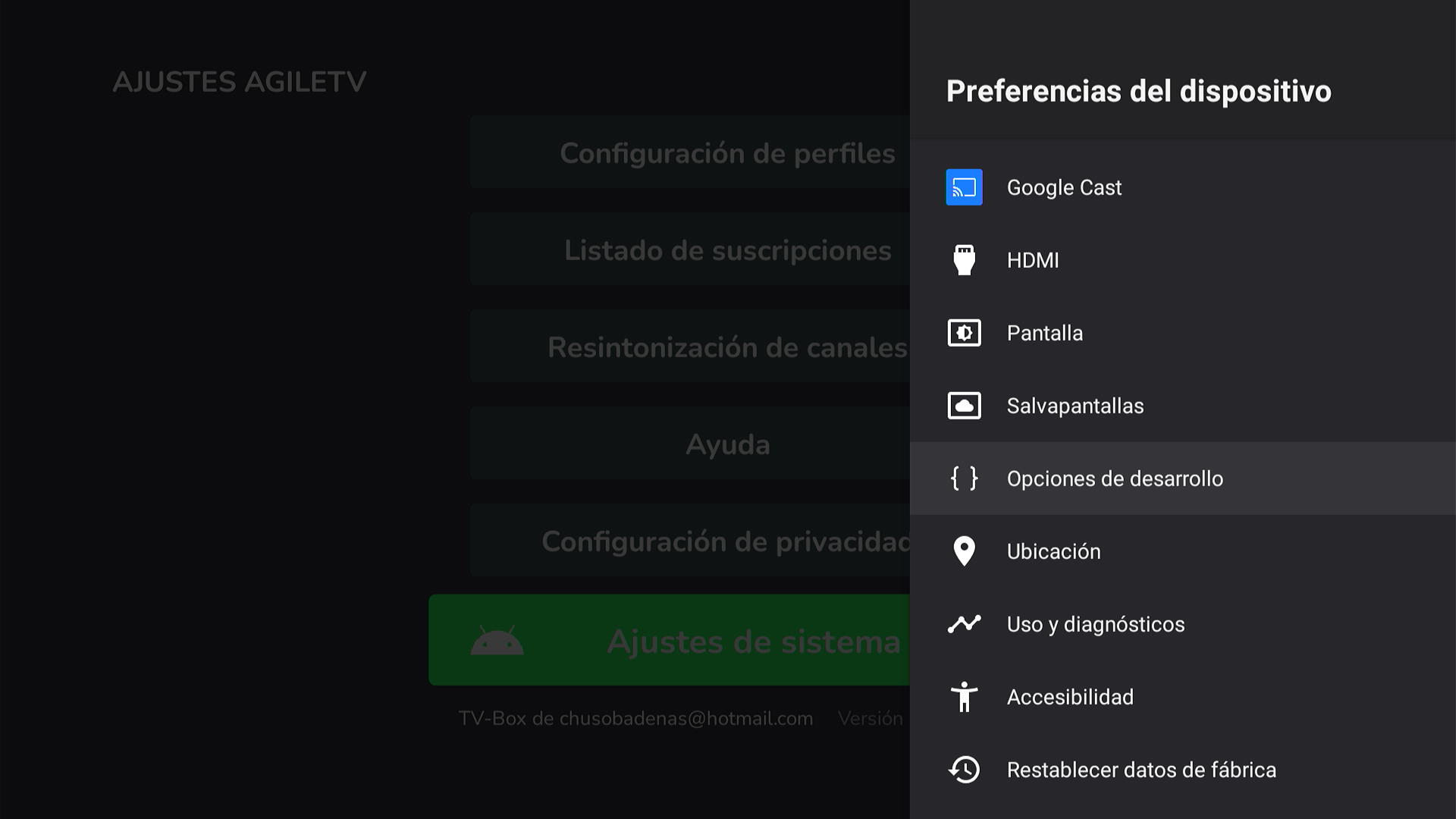
- Click "Preferencias del dispositivo":
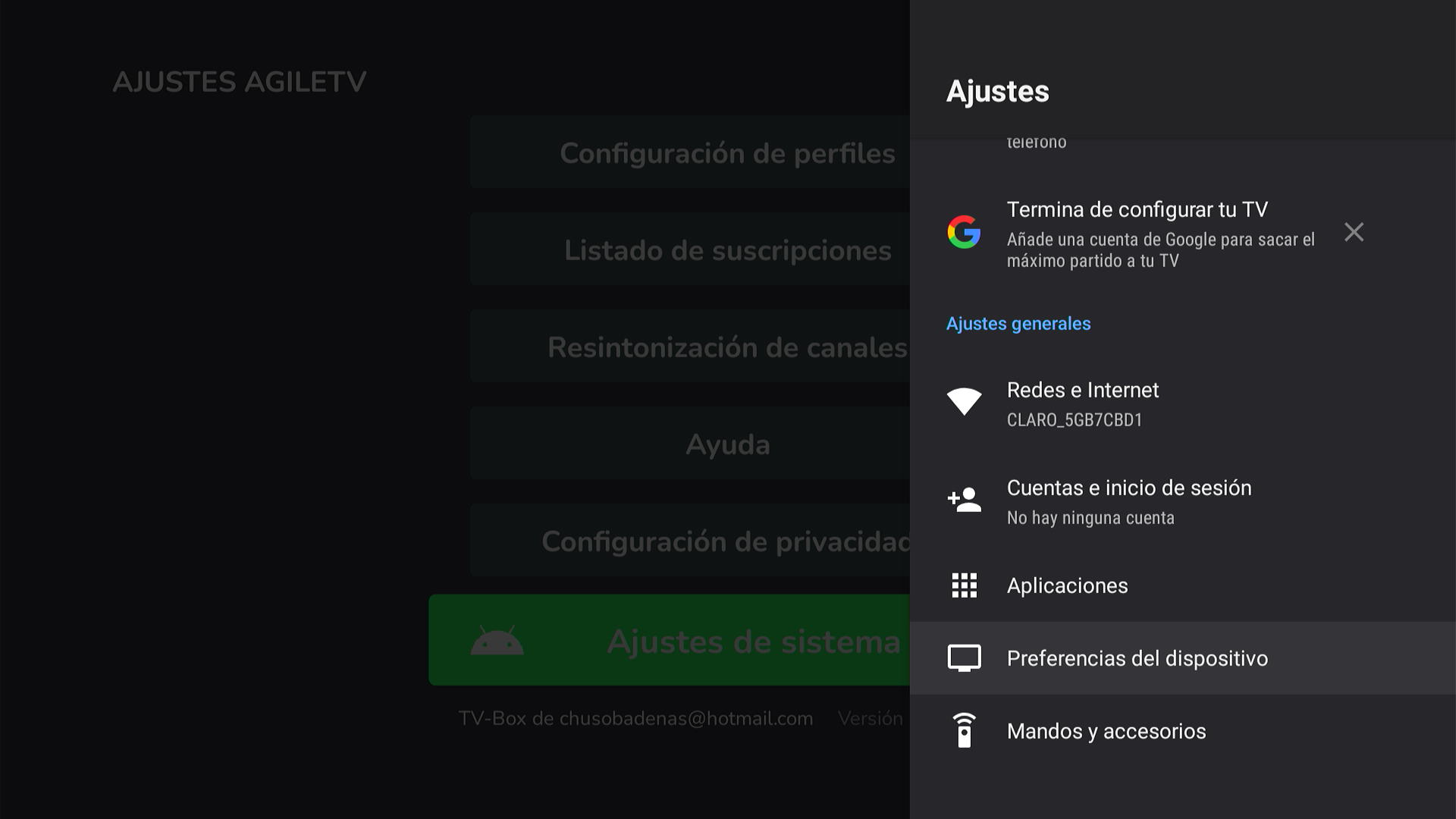
- Click "Información".
- Click 8 times on "Compilación":
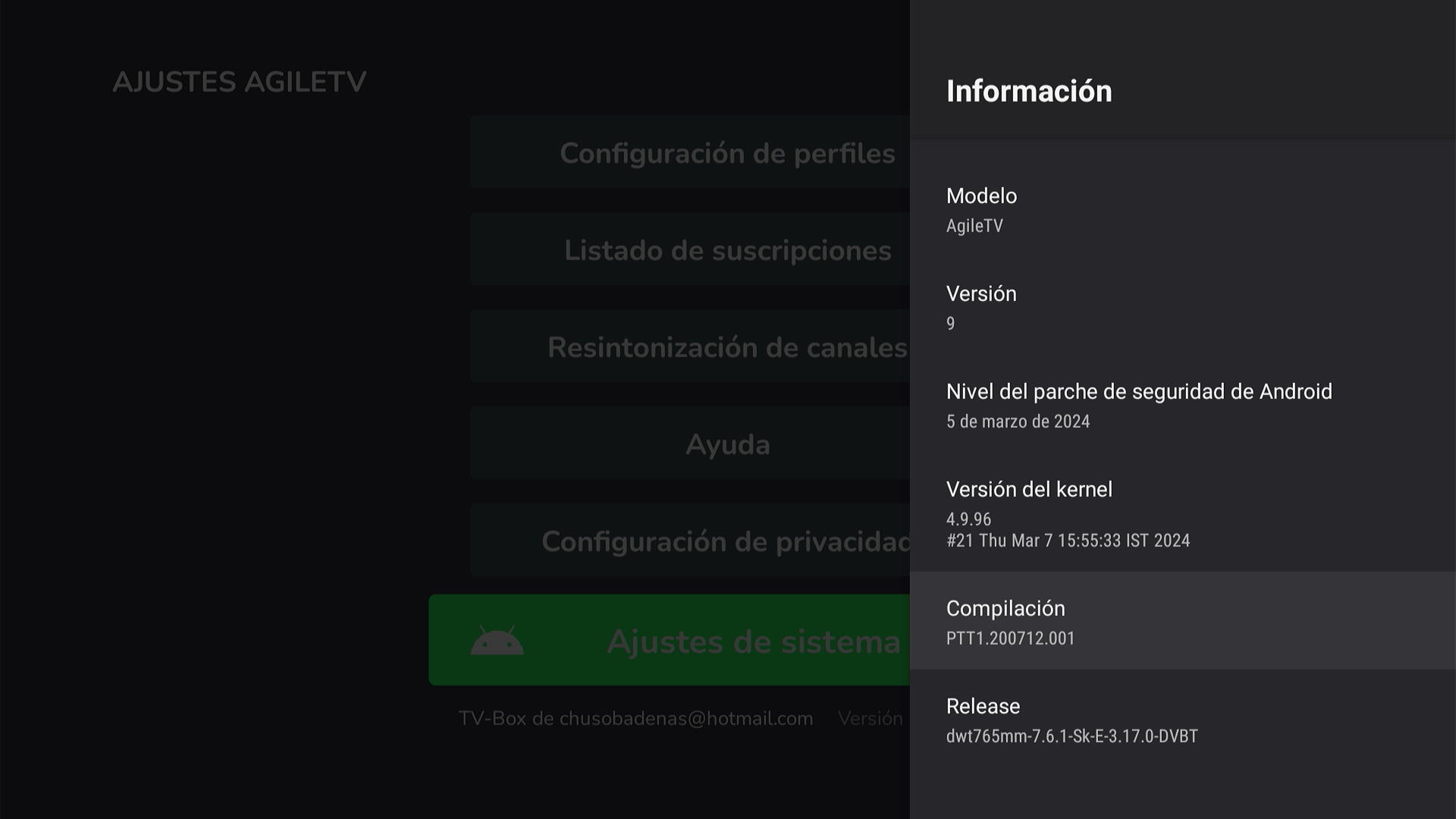
- At Home screen, click on "AJUSTES" -> "Ajustes de sistema" -> "Preferencias del dispositivo" -> "Opciones de desarrollo".
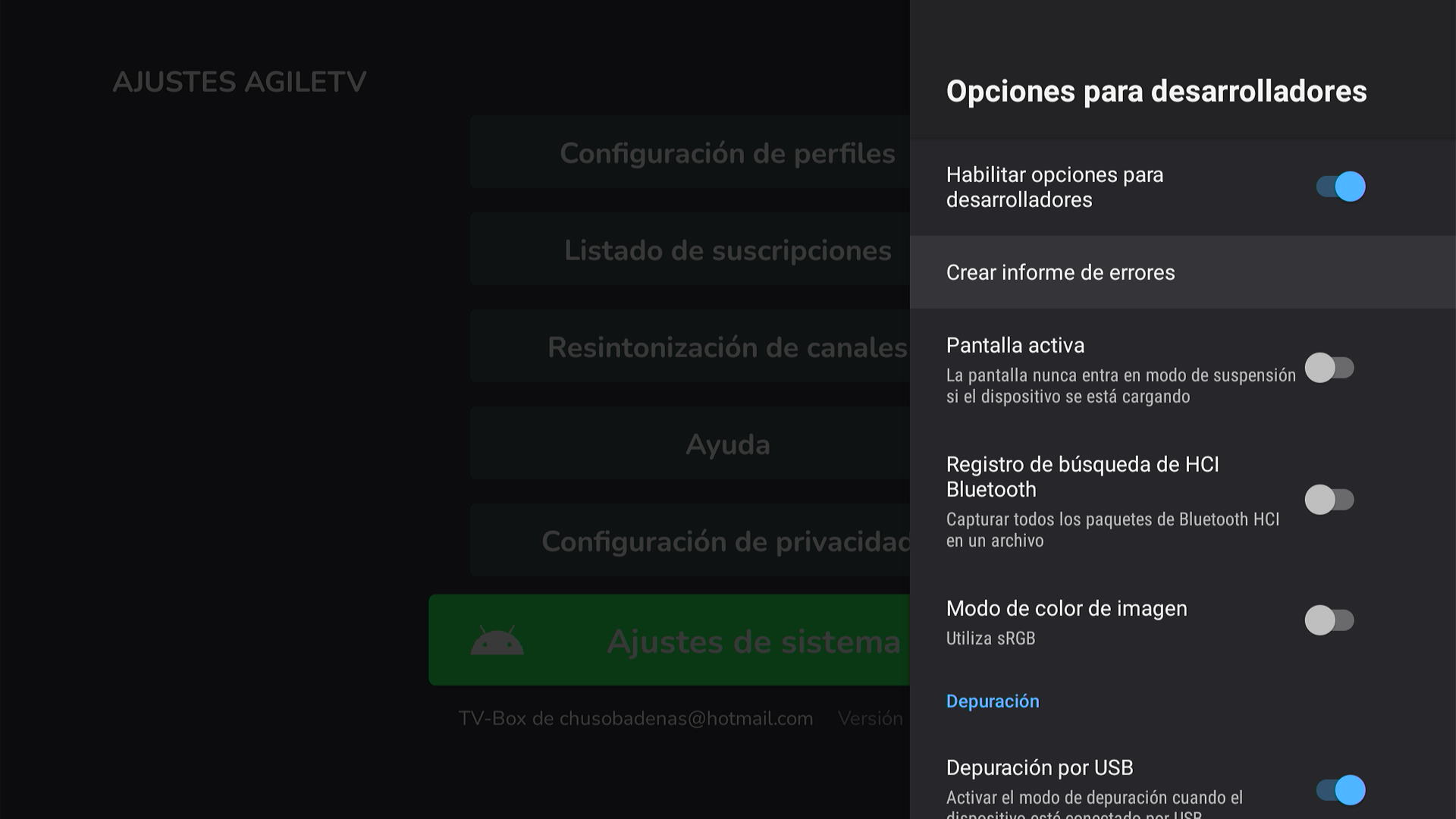
- Enable "Habilitar opciones de desarrollarores" and "Depuración por USB".
Wireless connection
- Check if the device is connected at the same network as the computer. Get the IP address of the device:

- Open the terminal and type:shell
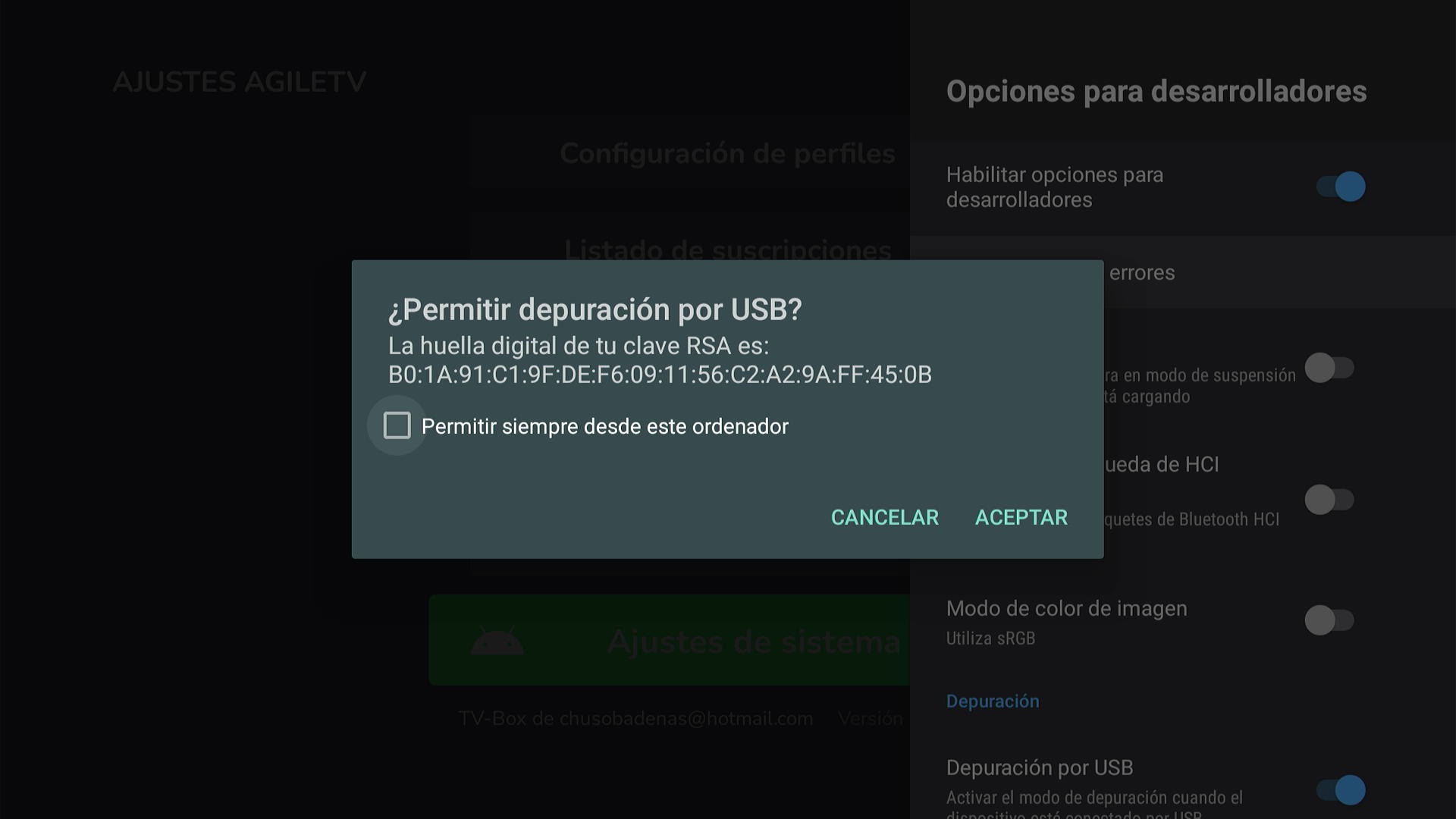
adb connect 192.168.0.11 - On the device, accept the confirmation dialog box:
- Open the terminal and type:shell
adb devices - The following message should be displayed:text
List of devices attached
192.168.0.11:5555       device
Example 2: PROSB-3000/16GB
In this example we will learn how to connect a generic Android TV Box to the developer computer.
| Specification | Detail |
|---|---|
| Model | PROSB-3000/16GB |
| Android | V.10 OASP |
| RAM | 2 GB |
USB Cable:
- USB type A male to male cable
Enabling USB debug
- At Home screen, click on "Configurations" button (the gear button).
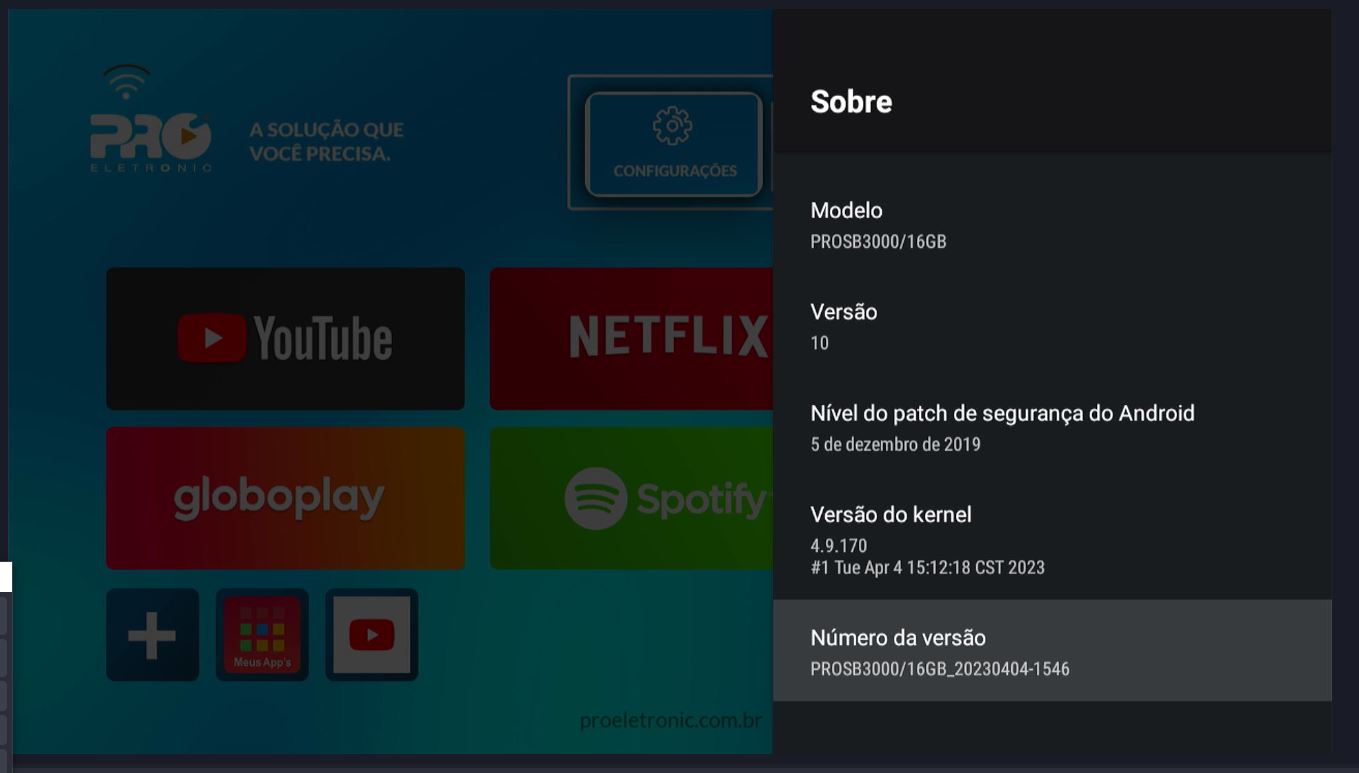
- Click "Preferences" -> "About".
- Click 8 times on "Version number":
- At Home screen, click on "Configurations" button (the gear button).
- Click "Preferences" -> "Developer Options".
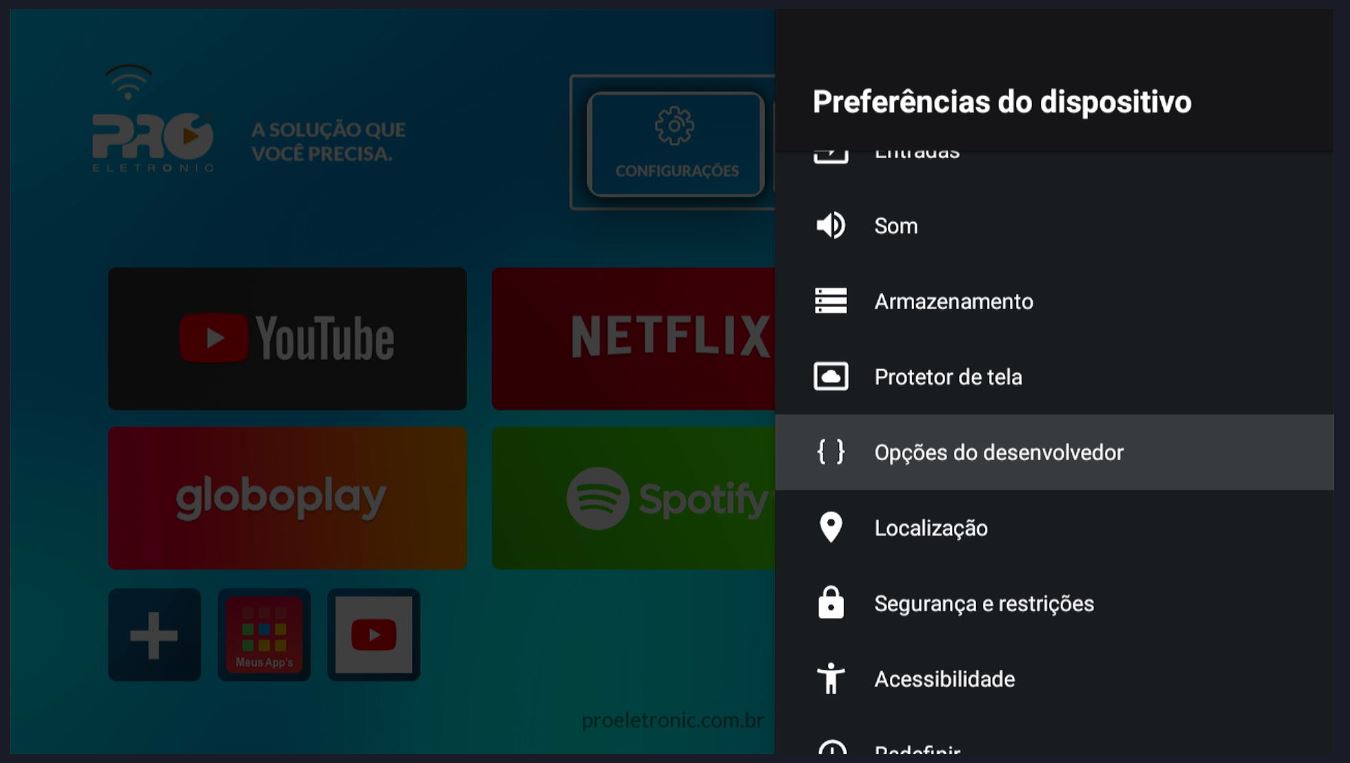
- Click on "Enable Developer Options".
- Click on "Enable USB Debug".
- Click on "Enable USB0 device debug.
USB connection (Windows)
- Use the "USB Type A male to male" cable to connect the set-top-box to the computer.
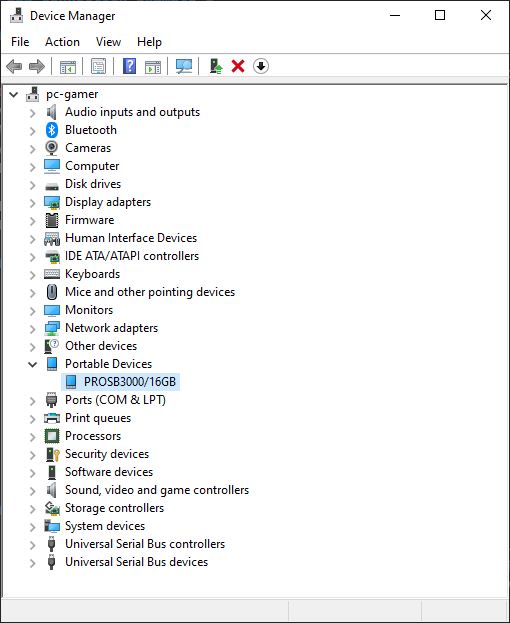
- Press Win + R to open the Run dialog.
- Type
devmgmt.mscand press Enter to open the Device Manager window. - Confirm that the device PROSB3000/16GB is displayed on "Portable Devices" node:
- Open the terminal and type:shell
adb devices - The following message should be displayed:text
List of devices attached
PRO23APR007940  device
USB connection (Mac)
- Use the "USB Type A male to male" cable to connect the set-top-box to the computer.
- Open the terminal and type:shell
adb devices - The following message should be displayed:text
List of devices attached
PRO23APR007940  device
Wireless connection
- First, follow the steps as described here for USB connection.
- Open the terminal and type:shellThis command will enable wireless debugging and it should be executed only at once.
adb tcpip 5555 - If running windows, securely disconnect the device and remove the USB Cable.
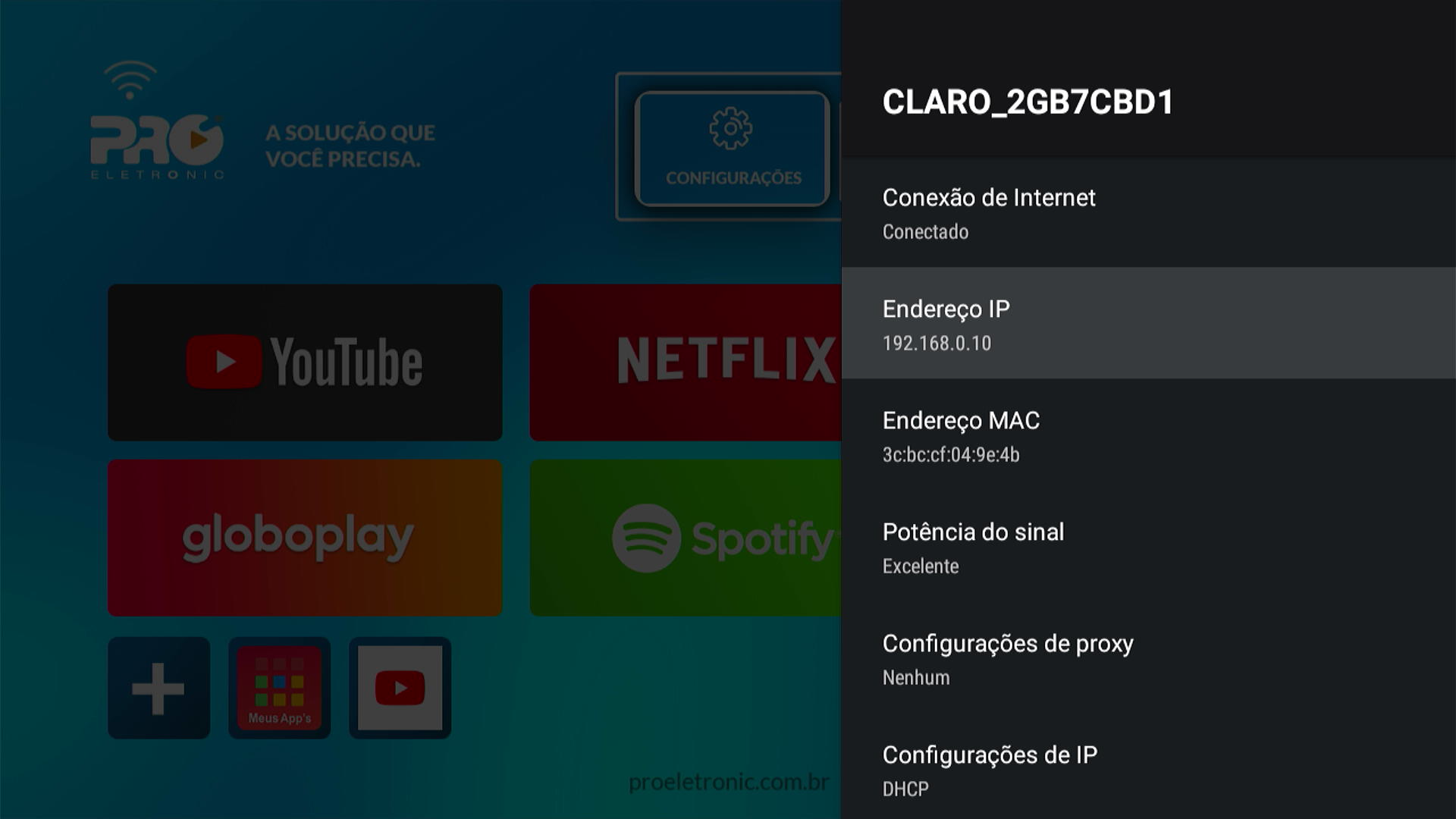
- Check if the device is connected at the same network as the computer. Get the IP address of the device:
- Open the terminal and type:shell
adb connect 192.168.0.10 - The following message should be displayed:text
connected to 192.168.0.10:5555
Example 3: SAMSUNG Galaxy S23 FE
In this example, we will learn how to connect a SAMSUNG Galaxy S3 FE smartphone to the developer computer.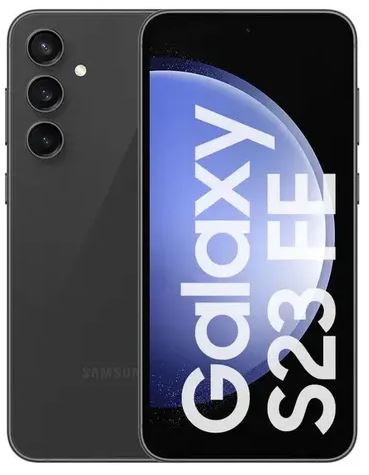
| Specification | Detail |
|---|---|
| Model | SAMSUNG Galaxy S23 FE |
| Android | Android 14 |
| RAM | 6 GB |
Enabling USB debug
- At the Home screen, click on "Configurações" (Settings).
- Scroll down and click on "Sobre o telefone" (About phone), then click on "Informações do software".
- Click 7 times on "Número de compilação" (Build number) to enable developer mode.
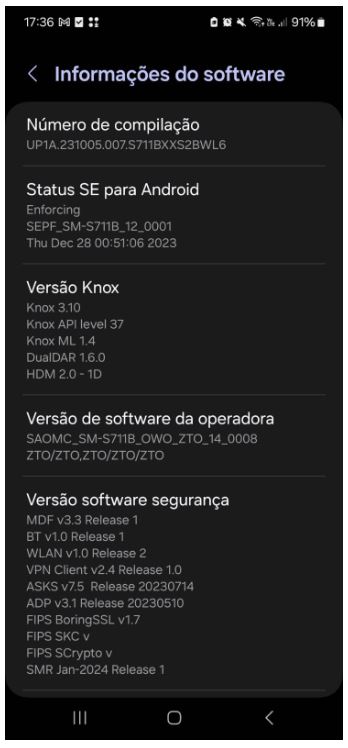
- Return to the "Configurações" (Settings) menu.
- Click on "Opções do desenvolvedor" (Developer options).
- Enable "Opções do desenvolvedor" (Developer options). Enable "Depuração USB" (USB Debugging)
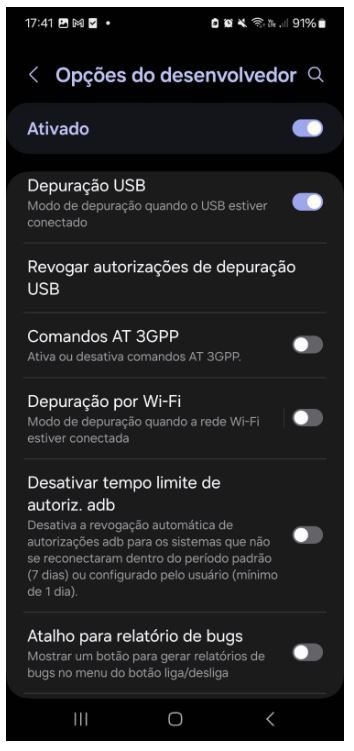
USB connection (Windows)
- Use an USB Type-C cable to connect the smartphone to the computer.
- On the smartphone, choose the option "Carregar somente" (Charge only).
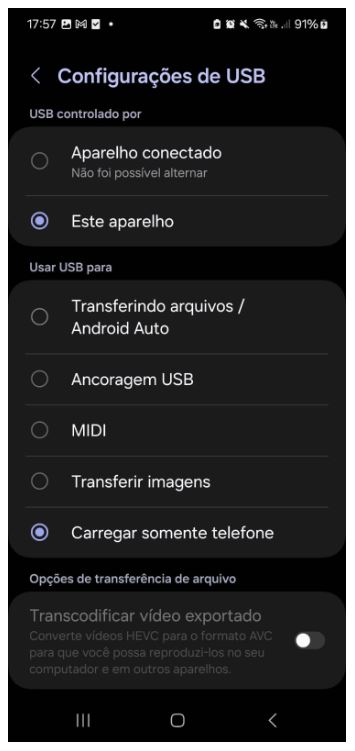
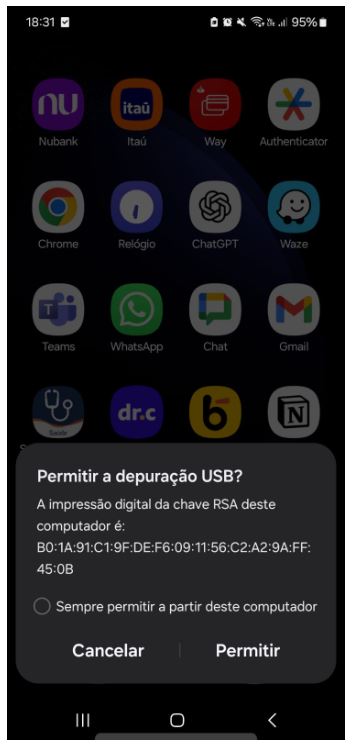
- On the smartphone, accept the "Permitir Depuração USB" (Allow USB debugging) message dialog box.
- On the Windows computer, press Win + R to open the Run dialog.
- Type
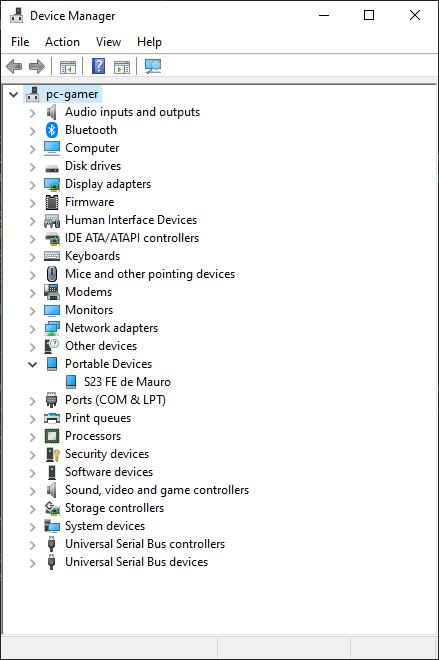
devmgmt.mscand press Enter to open the Device Manager window. - Confirm that the device Galaxy S3 FE is displayed under the "Portable Devices" node.
- Open the terminal and type:shell
adb devices - The following message should be displayed:text
List of devices attached
RQCX2029BAE     device
USB connection (Mac)
- Use an USB Type-C cable to connect the smartphone to the computer.
- On the smartphone, choose the option "Carregar somente" (Charge only).
- On the smartphone, accept the "Permitir Depuração USB" (Allow USB debugging) message dialog box.
- Open the terminal and type:shell
adb devices - The following message should be displayed:text
List of devices attached
RQCX2029BAE     device
Wireless connection
- First, follow the steps as described here for USB connection.
- Open the terminal and type:shellThis command will enable wireless debugging and it should be executed only once.
adb tcpip 5555 - If running Windows, securely disconnect the device and remove the USB cable.
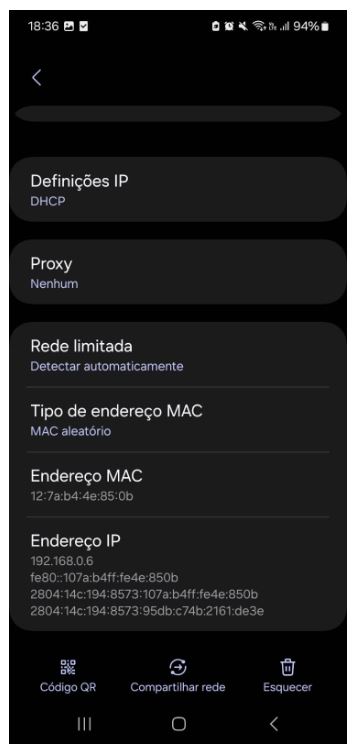
- Check if the device is connected to the same network as the computer. Get the IP address of the device from "Configurações" -> "Conexões" -> "Wi-Fi" -> Click on the connected network -> "Endereço IP" (IP Address).
- Open the terminal and type:shell
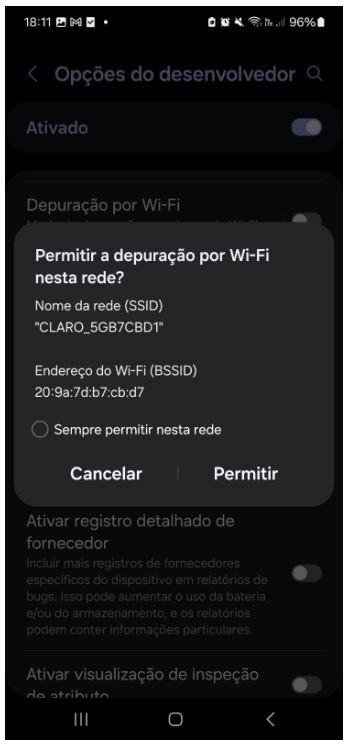
adb connect 192.168.0.6 - On the smartphone, accept the "Permitir Depuração WIFI" (Allow WIFI debugging) message dialog box.
- Open the terminal and type:shell
adb devices - The following message should be displayed:text
List of devices attached
192.168.0.6:5555       device