
Driver Session
Introduction
This module provides instructions for setting up and verifying the Appium environment for iOS automation.
Appium Inspector for iOS
Appium Inspector is a graphical tool that allows you to inspect the UI elements of a connected iOS device. Please refer to the main documentation for installation instructions.
Before starting Appium Inspector
- Ensure your iOS device is connected to the computer and properly configured as described in the iOS Devices module. Use the following command on terminal to verify the connection:shThe output should list your device's UDID. If the device is not listed, troubleshoot the connection as described in the iOS Devices module.
idevice_id -l - Ensure that the WebDriverAgent is correctly installed and signed on your device.
- Start the Appium server by running this command on terminal:shell
appium
Usage
Open Appium Inspector.
In the "Desired Capabilities" section, configure the following capabilities:
platformName:iOSappium:automationName:XCUITestappium:udid: The UDID of your connected device (fromidevice_id -lcommand).appium:usePrebuiltWDA: Prevent XCUITest from build WDA for every new session.appium:bundleId: The bundle identifier of the app you want to test (e.g.,com.apple.Preferencesfor Setting).
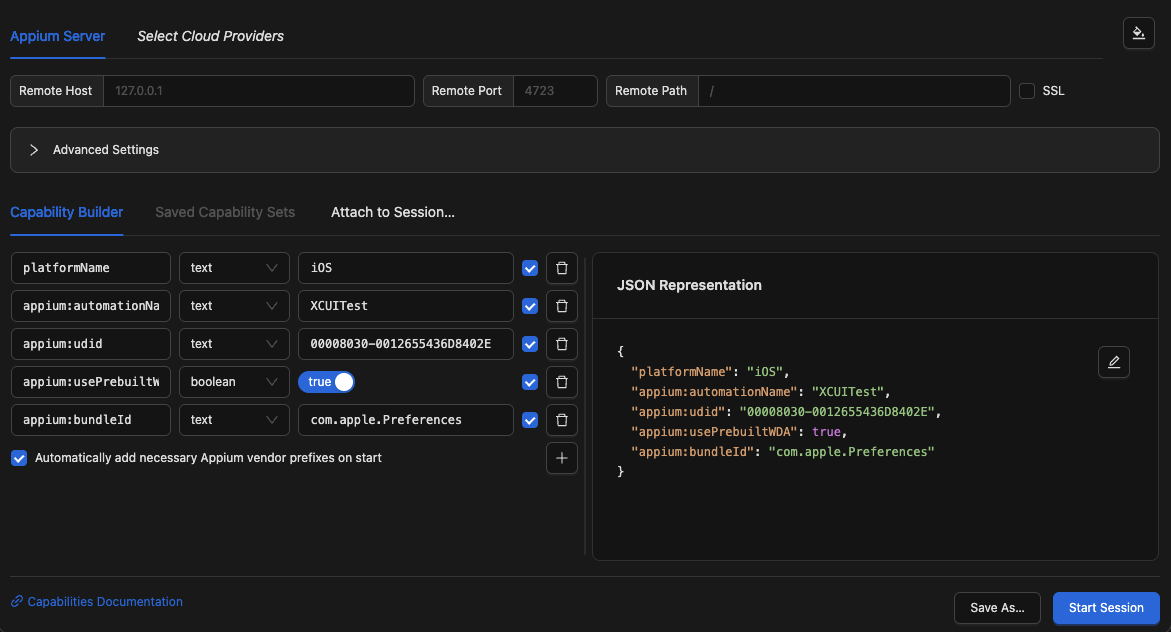
The JSON Representation panel should contain a text like the example as follows:
json{ "platformName": "iOS", "appium:automationName": "XCUITest", "appium:udid": "00008030-0012655436D8402E", "appium:usePrebuiltWDA": true, "appium:bundleId": "com.apple.Preferences" }Click the "Start Session" button.
Appium Inspector will display the UI of the connected device, allowing you to inspect elements and generate selectors for your automation scripts.
Note
If the message "Automation Running" don't disappears from iPhone screen after closing Appium Inspector session, open terminal and type pkill -9 xcodebuild. This action will prevent from getting errors on the next session.