
Python Example 2
Goal to Achieve
Do login with invalid credentials on AgileTV app on an iPhone using Python and take a screenshot.
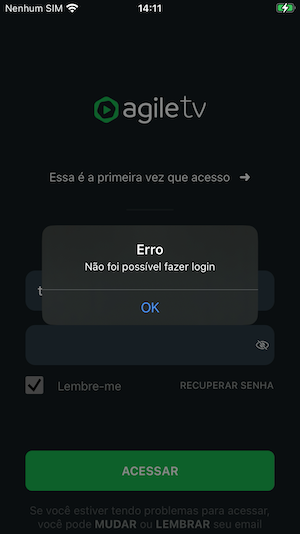
Steps to reproduce:
- Ensure AgileTV is installed from the App Store on the iPhone.
- Open AgileTV app.
- Wait until username input appears on screen.
- Fill username, password and press ENTER.
- Take a screenshot.
Prerequisites
- Common environment steps to be completed.
- iOS environment steps to be completed.
- Python installed on the computer.
- A connected iPhone, as described here.
- Appium server running, as described here.
- AgileTV installed from the App Store (see below).
Install AgileTV from the App Store
On the iPhone, open the App Store.
Search for “Agile TV”.
Confirm the app publisher matches Agile TV by Agile Content/Agile TV brand and the icon is the expected Agile TV logo.
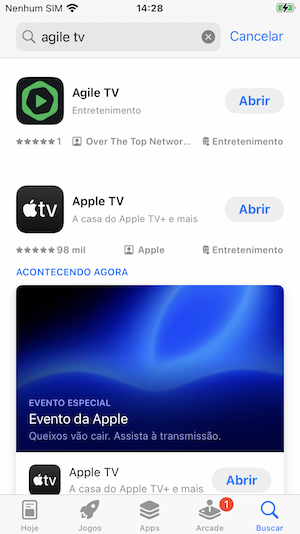
Tap Get/Download and complete the install so the app is present on the device home screen.
Project Setup
Create a project folder named
ios-python-2with two files, as follows:└── ios-python-2/ ├── agiletv-login.py └── requirements.txtCopy the following content to the
requirements.txtfile:txtAppium-Python-ClientCopy the following content to the
agiletv-login.pyfile:pythonimport time import unittest from appium.webdriver.webdriver import WebDriver from appium.options.ios.xcuitest.base import XCUITestOptions from appium.webdriver.common.appiumby import AppiumBy capabilities = dict( platformName='iOS', automationName='XCUITest', udid='00000000-0000000000000000', # <-- Change this to your device's UDID usePrebuiltWDA=True, bundleId= 'es.ottnib.tve.agiletv', ) appium_server_url = 'http://localhost:4723' class TestAppium(unittest.TestCase): def setUp(self) -> None: self.driver = WebDriver(appium_server_url, options=XCUITestOptions().load_capabilities(capabilities)) self.driver.implicitly_wait(30) def tearDown(self) -> None: if self.driver: self.driver.quit() def test_login_false_credentials(self) -> None: email_id = 'login_user_input' password_id = 'login_password_input' self.driver.find_element(by=AppiumBy.ACCESSIBILITY_ID, value=email_id).send_keys('testuser') self.driver.find_element(by=AppiumBy.ACCESSIBILITY_ID, value=password_id).send_keys('p4ssw0rd\n') time.sleep(8) self.driver.save_screenshot('screenshot.png') if __name__ == '__main__': unittest.main()Initialize the Python virtual environment. Follow the instructions here.
Install the dependencies:
shellpip install -r requirements.txt
Capabilities
Before running, you need to adjust the capabilities dictionary:
- udid:
Replace'00000000-0000000000000000'with the UDID of your connected device.
You can find this ID as explained here. - appium:bundleId:
Already set toes.ottnib.tve.agiletvso Appium launches the App Store-installed app.
Find the bundleId
If you need to discover the correct appium:bundleId for an installed app, list all apps on the connected iPhone using your terminal:
ideviceinstaller -lThis command prints the bundle identifiers of installed apps. You can then copy the desired bundleId into your capabilities.
Note: ideviceinstaller is provided by the libimobiledevice tools. See iOS Devices for usage and installation instructions (via Homebrew on macOS).
Running the script
To run the script, execute the following command in your terminal (with the virtual environment activated):
python agiletv-login.py