iOS Devices
Introduction
This module provides instructions on how to connect different iOS devices to the developer machine in macOS environment.
Prerequisites
Example 1: iPhone SE
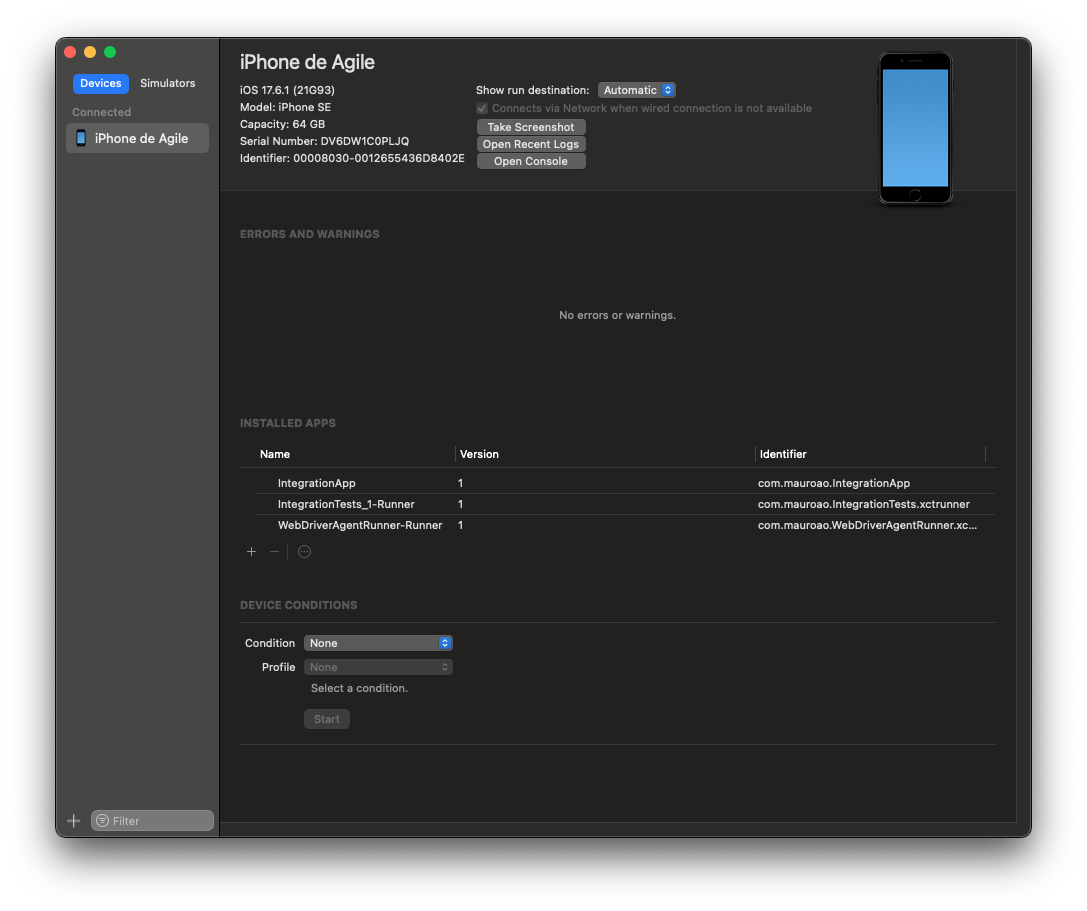
In this example we will learn how to connect an iPhone SE to the developer computer.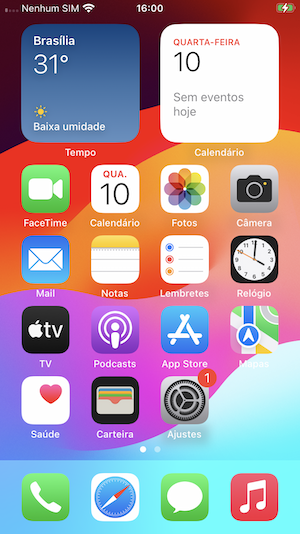
| Specification | Detail |
|---|---|
| Name | iPhone de Agile |
| iOS Version | 17.6.1 |
| Model Name | iPhone SE |
| Capacity | 64 GB |
Enabling Developer Mode
On your iPhone, open the Settings app.
Go to Privacy & Security.
Scroll down and tap on Developer Mode.
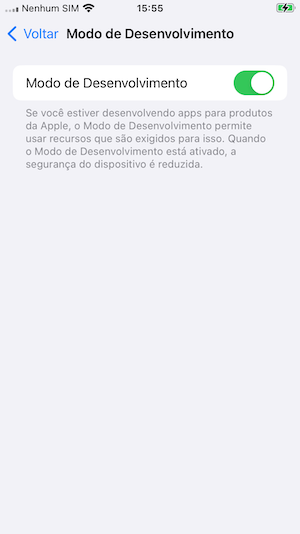
Turn on the Developer Mode switch and restart your iPhone.
Connecting to macOS
Connect your iPhone to your Mac using a Lightning to USB cable.
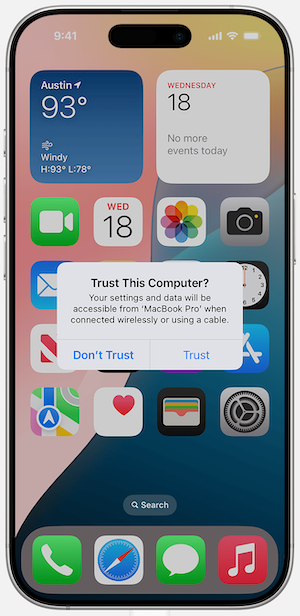
If it's the first time connecting, you'll need to trust the computer on your iPhone. Tap Trust on the alert that appears on your device.
Verifying the Connection
You can verify the connection using the idevice_id -l command in the terminal. This command is part of the libimobiledevice library, which you can install via Homebrew:
brew install libimobiledeviceAfter installation, run the command:
idevice_id -lIf your device is connected and recognized, its UDID will be listed.
Verifying with Xcode
- Open Xcode on your Mac.
- Go to the Window menu and select Devices and Simulators.
- Your connected iPhone should appear in the list of devices. You can see its details and connection status.