
Environment variables
Environment variables are key-value pairs used by the operating system to configure the behavior of applications. Setting these variables correctly is essential for tools like Node.js, Appium, and Java to function properly.
Windows environment variables
To create or update environment variables on Windows:
- Press Win + R to open the Run dialog.
- Type
SystemPropertiesAdvancedand press Enter to open the System Properties window.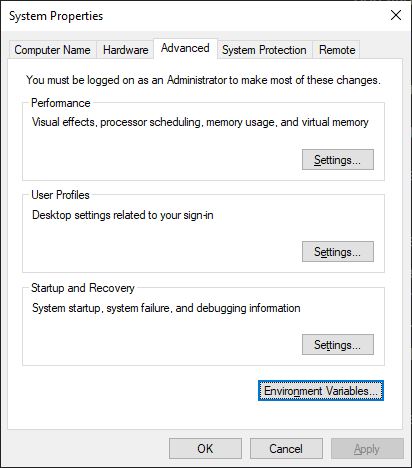
- In the System Properties window, click the Environment Variables button to open the Environment Variables screen.
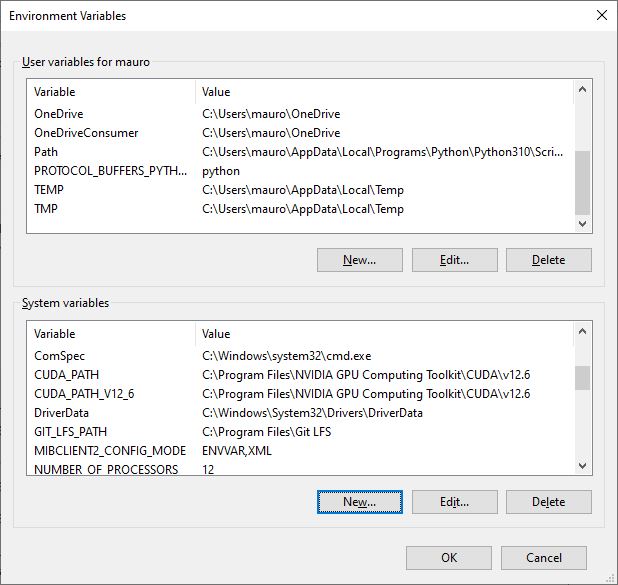
- Under System variables or User variables, click New to create a new variable or Edit to update an existing one.
- Enter the variable name (e.g.,
JAVA_HOME) and its value (e.g., the path to the JDK installation directory).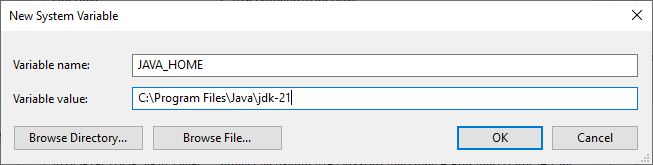
- Click OK to save the changes.
- Restart your Terminal or IDE to apply the changes.
MacOS environment variables
To create or update environment variables on macOS:
- Open the Terminal.
- Use a text editor to open the shell configuration file. For macOS systems (Catalina and later), the default shell is zsh, so the file to edit is
~/.zshrc. - Add or update the variable by appending a line like the following:shellFor example:
export VARIABLE_NAME="value"shellexport JAVA_HOME="/Library/Java/JavaVirtualMachines/jdk-21.jdk/Contents/Home" - Save the file and close the editor.
- Apply the changes by running:shell
source ~/.zshrc - Verify the variable is set by typing:shell
echo $VARIABLE_NAME