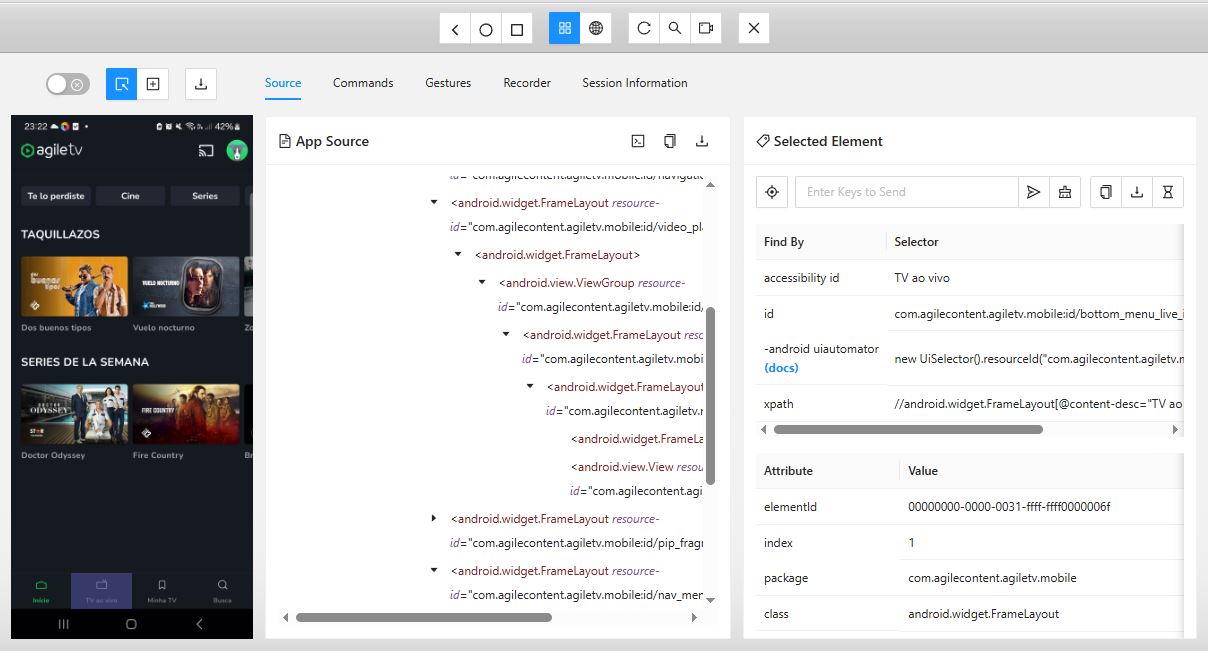
Driver Session
Introduction
This module provides instructions for setting up and verifying the Appium environment for Android automation.
Appium Inspector for Android
Appium Inspector is a graphical tool that allows you to inspect the UI elements of a connected Android device. Please refer to the main documentation for installation instructions.
Before starting Appium Inspector
- Ensure your Android device is connected to the computer and properly configured as described in the Android Devices module. Use the following command on terminal to verify the connection:shellThe output should list your device as
adb devicesdevice. If the device is not listed, troubleshoot the connection as described in the Android Devices module. - Start the Appium server by running this command on terminal:shell
Appium
Usage
- Open Appium Inspector.
- In the "Desired Capabilities" section, configure the following capabilities:
platformName:Androidappium:udid: The ID of your connected device
(the device ID fromadb devicescommand).appium:automationName:UiAutomator2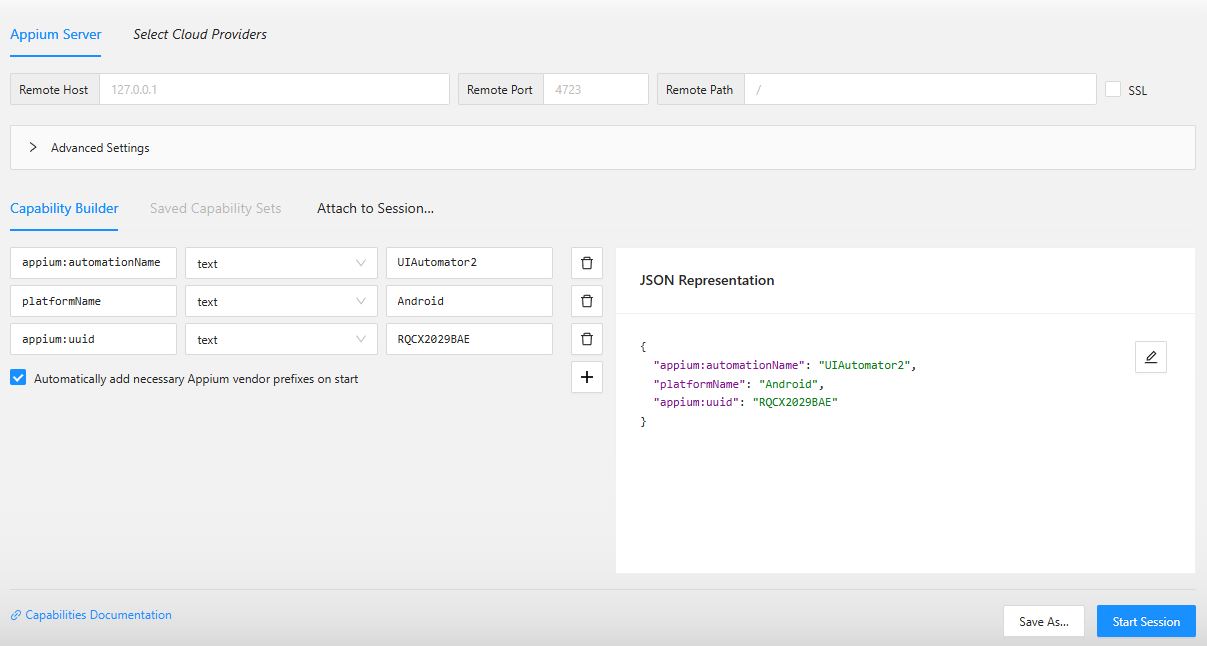
The JSON Representation panel should countains a text like the example as follows:
json{ "platformName": "Android", "appium:udid": "RQCX9999999", "appium:automationName": "UiAutomator2" } - Click the "Start Session" button.
- Appium Inspector will display the UI of the connected device, allowing you to inspect elements and generate selectors for your automation scripts.